Confirm group-derived access
John was active, Okta-Users contained him, the app assignment came from the group, and RSA accepted his SAML login.
From an empty AWS network to a working hybrid identity system: I built a Windows domain controller, integrated it with Okta, resolved connectivity and import failures, and tested authentication, federation and access removal through restoration.
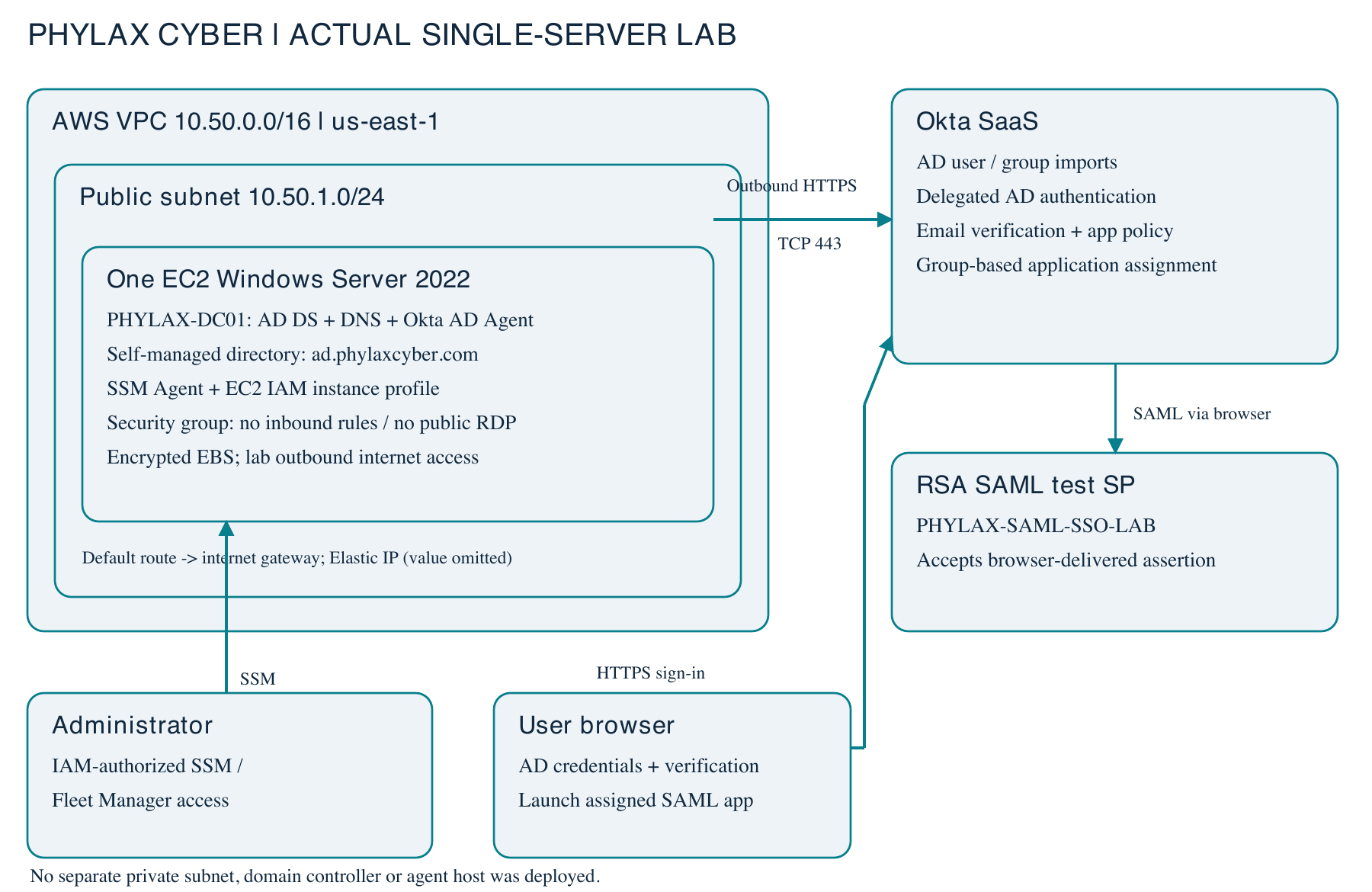
The lab uses self-managed Active Directory, not AWS Managed Microsoft AD. A single EC2 server hosts AD DS, DNS and the Okta AD Agent for the domain ad.phylaxcyber.com.
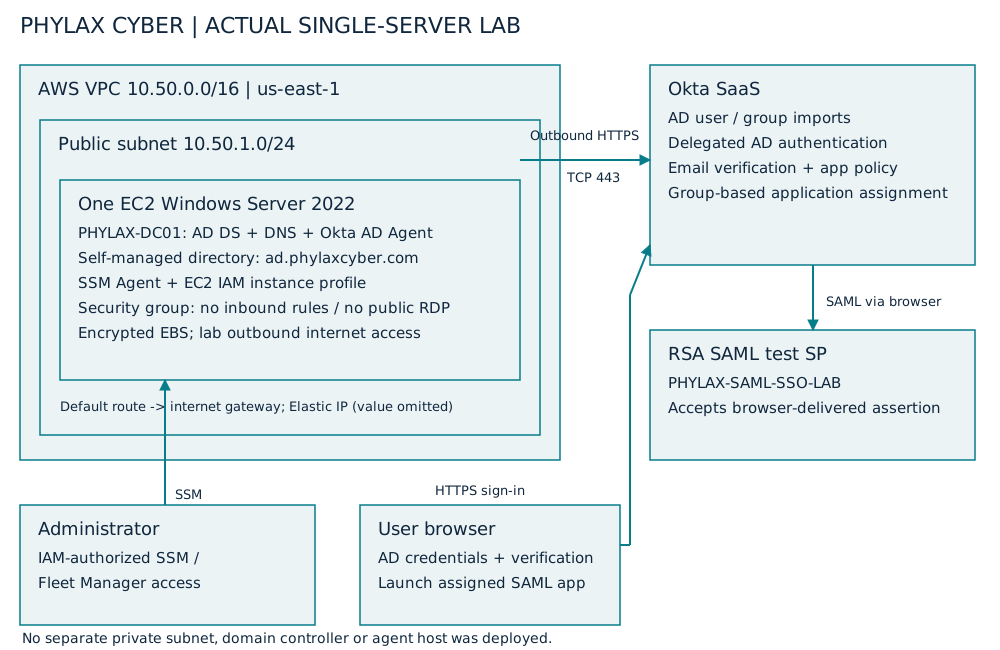
The AD Agent connects outbound to Okta over HTTPS. AD validates the user's password; Okta applies authentication policy and issues the SAML assertion. Group membership determines who receives the application assignment.
I chose self-managed AD on EC2 to build and troubleshoot the directory myself. The lab ran in us-east-1 on a Windows Server 2022 t3.large instance named PHYLAX-DC01.
| Resource | Lab configuration |
|---|---|
| VPC / subnet | PHYLAX-IAM-VPC — 10.50.0.0/16. PHYLAX-PUBLIC-SUBNET — 10.50.1.0/24. |
| Internet route | PHYLAX-IGW attached to the VPC; PHYLAX-PUBLIC-RT associated with the subnet and a 0.0.0.0/0 route to the internet gateway. |
| Security group | IAM-SG with no inbound rules. The wizard’s public RDP rule was removed. Outbound traffic was allowed; the network ACL also allowed traffic in both directions. |
| Instance access | PHYLAX-EC2-SSM-Role with AmazonSSMManagedInstanceCore. CloudWatchAgentServerPolicy was also selected during setup, but configured log collection was not demonstrated. |
| Storage / metadata | Encrypted 50 GiB gp3 root volume, 3,000 IOPS, AWS-managed EBS key and deletion on instance termination. IMDSv2 required. |
| Private address | The deployed server used 10.50.1.103. The earlier proposed 10.50.1.10 address was not the final configuration. |
The instance launched without a public address and initially failed to register with Systems Manager. A connection attempt to the regional SSM endpoint on TCP 443 timed out. I checked the subnet route-table association, internet gateway route, security-group egress, network ACL and address association. An Elastic IP supplied internet connectivity without a NAT gateway for this lab. SSM then showed the instance online and a session connected.
No EC2 key pair had been selected, so the usual initial Windows password decryption was unavailable. In the SSM PowerShell session, whoami identified ssm-user; group checks showed enabled local administrator membership. I set an Administrator password through an interactive prompt and connected using Fleet Manager Remote Desktop.
whoami
whoami /groups
net user Administrator *
The prompt keeps the new password out of the command text. Use a unique password and do not put it in screenshots, scripts or the repository.
I installed the AD Domain Services role and management tools, then renamed the generated EC2 hostname to PHYLAX-DC01 and restarted. Before promotion, I replaced the initially proposed test namespace with ad.phylaxcyber.com, using PHYLAX as the NetBIOS name.
Install-WindowsFeature AD-Domain-Services -IncludeManagementTools
Rename-Computer -NewName "PHYLAX-DC01" -Restart
# After restarting, run in an elevated PowerShell session:
$dsrm = Read-Host "Enter a unique DSRM password" -AsSecureString
Install-ADDSForest -DomainName "ad.phylaxcyber.com" `
  -DomainNetbiosName "PHYLAX" -InstallDNS `
  -SafeModeAdministratorPassword $dsrm
These commands express the intended secure procedure. Do not repeat Rename-Computer on an already promoted domain controller. Promotion restarts the server.
Forest promotion repeatedly reported password complexity failures. Policy inspection showed complexity enabled. A diagnostic revealed that one hidden-input attempt had captured only one character, explaining why apparently complex entries failed. Promotion eventually succeeded after correcting input handling.
Get-ADDomain returned the new forest and PHYLAX NetBIOS name. Local DNS resolved ad.phylaxcyber.com to 10.50.1.103, and dcdiag passed its connectivity and DNS tests. The server’s DNS client used 127.0.0.1. A DHCP-related warning remained; the lab retained the EC2-assigned private address.
Get-ADDomain | Select-Object DNSRoot, NetBIOSName, Forest
Resolve-DnsName ad.phylaxcyber.com -Server 127.0.0.1
dcdiag /test:DNS
Get-DnsClientServerAddress -AddressFamily IPv4
AD DNS stayed inside the directory environment. Public Route 53 records were not needed to expose this domain controller.
I created PHYLAX-Users and PHYLAX-Groups below the domain root. John Doe was a synthetic user with sAMAccountName jdoe and UPN jdoe@ad.phylaxcyber.com. After setting his password, I explicitly enabled the account. Okta-Users was a Global Security group in the group OU; adding John established the directory-side entitlement.
$base = "DC=ad,DC=phylaxcyber,DC=com"
New-ADOrganizationalUnit -Name "PHYLAX-Users" -Path $base
New-ADOrganizationalUnit -Name "PHYLAX-Groups" -Path $base
# Create jdoe in PHYLAX-Users with a unique securely entered password.
Enable-ADAccount -Identity jdoe
Get-ADUser jdoe -Properties Enabled,UserPrincipalName
New-ADGroup -Name "Okta-Users" -GroupScope Global `
  -GroupCategory Security -Path "OU=PHYLAX-Groups,$base"
Add-ADGroupMember -Identity "Okta-Users" -Members jdoe
Get-ADGroupMember -Identity "Okta-Users"
Creation commands are for a fresh lab; they are not an idempotent deployment script. The PDF contains the fuller user-creation procedure.
From Okta Directory Integrations, I added Active Directory and downloaded the Windows agent installer. The lab used agent version 3.23.0 and the OktaService service account. Registration used the Okta administrator activation flow, with direct outbound internet access and no proxy. Activation codes and organization identifiers are excluded.
I scoped the import to the dedicated lab OUs rather than selecting the domain root. The user OU was PHYLAX-Users; the lab group OU was PHYLAX-Groups. UPN was selected as the Okta username format.
A full import discovered John Doe, but discovery alone did not create an active account. I selected the staged user, confirmed the assignment and enabled auto-activation. Okta then showed John as Active and AD-sourced. Okta-Users synchronized as an AD-managed group, so membership changes belonged in AD.
The integration imported directory identifiers and user attributes. Optional profile fields were discussed, but no ABAC or governance policy was tested. A provisioning mapping warning did not establish reverse provisioning or password writeback.
I enabled delegated authentication and its test succeeded. A fresh browser login then reached email verification. The UPN was a lab sign-in name, not a working mailbox, so I updated John’s AD mail attribute to a reachable private email address and ran an incremental import. The imported email received the code and sign-in completed.
# Replace the example with the test account's reachable mailbox.
Set-ADUser -Identity jdoe -EmailAddress "test-mailbox@example.com"
Get-ADUser jdoe -Properties mail,UserPrincipalName |
  Select-Object UserPrincipalName,mail
# Run an incremental import in Okta, then test a fresh sign-in.The first custom SAML app attempt targeted SAMLtest.id, which was unavailable during the lab. I switched to the RSA SAML Test Service Provider from the Okta catalog and named the application PHYLAX-SAML-SSO-LAB. Assigning Okta-Users gave John the app tile. Launching it produced the RSA “Hello John Doe” result and an accepted SAML assertion.
Service-provider metadata and endpoints depend on the chosen service; the record does not support inventing exact ACS or entity-ID values. The captured result, rather than a proposed configuration, is the evidence of successful federation.
With the baseline login working, I changed AD state and ran imports to check the effect in Okta and the application. These tests distinguish entitlement removal from disabling an identity.
John was active, Okta-Users contained him, the app assignment came from the group, and RSA accepted his SAML login.
Remove-ADGroupMember removed jdoe. After incremental import, Okta-Users had zero members and the fresh dashboard had no app tile. John remained Active.
Disable-ADAccount changed AD Enabled to False. Importing this change caused Okta to display Deactivated.
Enable-ADAccount restored AD Enabled to True, but the matching Okta identity stayed inactive. Import confirmation initially failed with auto-activation unchecked.
I confirmed the matching import with auto-activation enabled. John returned to Active. This step required administrator confirmation in this run.
I added jdoe back to Okta-Users and imported again. The group contained one member, the app showed a group assignment, the tile returned, and SAML login succeeded.
Remove-ADGroupMember -Identity "Okta-Users" -Members jdoe -Confirm:$false
Get-ADGroupMember -Identity "Okta-Users"
# Import and verify entitlement removal in Okta.
Disable-ADAccount -Identity jdoe
Get-ADUser jdoe -Properties Enabled
# Import and verify Okta deactivation.
Enable-ADAccount -Identity jdoe
# Import and confirm the matching user with auto-activation enabled.
Add-ADGroupMember -Identity "Okta-Users" -Members jdoe
Get-ADGroupMember -Identity "Okta-Users"
# Import, verify group assignment, and test SAML sign-in again.These screenshots were supplied in the original lab conversation and show the resulting states. Personal mailbox addresses and internal identifiers have been removed. John Doe is a synthetic test identity.
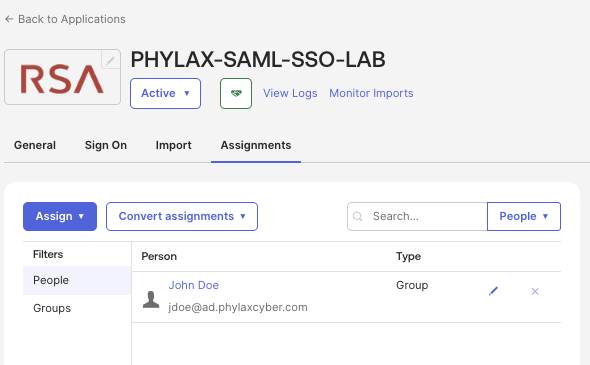
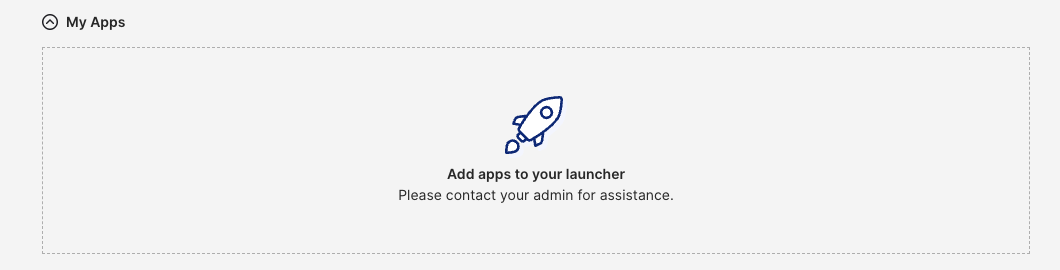



Group membership was restored, the application was reassigned through the group, and the RSA demo service accepted the SAML login.
The returned NameID was jdoe@ad.phylaxcyber.com. This is the lab login identity, not the private mailbox used for email verification.
View the full evidence and commands →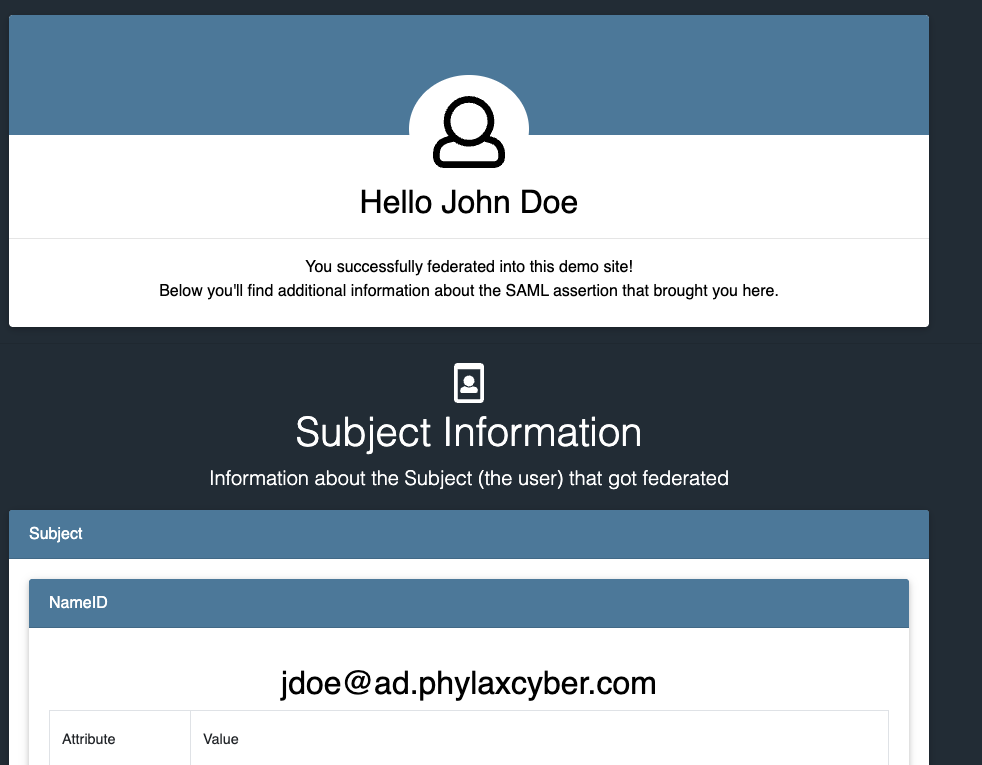
| Capability | What this lab established |
|---|---|
| Directory integration | AD DS/DNS, agent registration, user/group import and the email attribute update were reported successful in the lab record. |
| Authentication | AD delegated authentication and email verification completed. Email verification is not phishing-resistant. |
| Authorization | AD group membership controlled application assignment. Removing membership removed the app tile after import. |
| Identity lifecycle | AD disablement led to Okta deactivation. Reactivation required import confirmation with auto-activation in this run. |
| Federation | The RSA demo accepted SAML login after restoration. Existing service-provider session termination was not tested. |
The PDF distinguishes directly captured screenshots from reported outcomes. Earlier setup images were unavailable in the conversation export; they are not presented as recreated evidence.
Use redundant domain controllers in private subnets, separate agent hosts, controlled egress and phishing-resistant authentication. Test offboarding against active application sessions, monitor imports and verify failure recovery. None of these extensions is claimed as completed.
The single server must run for imports and delegated authentication. Stopping it reduces compute usage, while EBS and retained Elastic IP costs can continue. Review credits, Windows EC2 pricing and retained resources. Rotate credentials exposed during lab troubleshooting, retire the integration safely and release unneeded infrastructure. AWS teardown was completed by the project owner after publication. This is owner-reported completion; no teardown screenshot or residual-cost audit is included. Public DNS records were retained for the GitHub-hosted portfolio.
A 14-page, public portfolio edition with the architecture, AD setup, Okta integration, lifecycle tests, security caveats, costs, cleanup and vendor references.
Explore the companion cloud security project: layered web protection, detection and scoped automated remediation.
Explore the cloud security project ↗